

If your internet feels slower than it should, drops out during peak hours, or struggles to handle multiple connected devices, you’re likely searching for practical ways to improve router performance. This article is designed to help you cut through the noise and focus on what actually works. We break down the most effective strategies for router performance optimization, from firmware updates and channel selection to bandwidth management and hardware positioning.
Many online guides offer generic advice, but we base our recommendations on tested networking principles, real-world performance benchmarks, and current digital infrastructure standards. Our insights draw from up-to-date tech research, hands-on testing environments, and analysis of emerging connectivity trends.
By the end of this guide, you’ll understand how to identify bottlenecks, configure your router for maximum efficiency, and future-proof your network setup—whether you’re gaming, streaming, working remotely, or managing a smart home ecosystem.
Slow Wi‑Fi, laggy games, endless buffering—despite paying for gigabit speeds—feels like streaming through molasses. The culprit is often your router, not your ISP. Misconfigured channels, outdated firmware, and crowded bands quietly throttle performance.
This guide walks you from quick fixes to advanced router performance optimization techniques that can unlock measurable gains.
• Reposition hardware and update firmware
• Split 2.4GHz and 5GHz bands strategically
• Enable QoS for latency‑sensitive apps
Looking ahead (speculation), AI‑driven routers will auto‑tune networks in real time. Until then, a few smart tweaks can future‑proof your setup and keep speeds consistently sharp for years to come.
Firmware and Software: The Digital Foundation of Your Router
Your router’s firmware (the low-level software programmed into hardware that controls how it operates) is its operating brain. Keeping it current isn’t optional—it’s essential. Manufacturers release updates to patch security vulnerabilities (like those exploited in the 2017 KRACK Wi‑Fi attack, per US‑CERT), fix bugs, and improve stability. Some argue, “If it isn’t broken, don’t update.” Fair—but outdated firmware is often silently vulnerable (and hackers don’t send warnings).
How to Update (Universal Steps):
- Log into your router’s admin panel (typically 192.168.0.1 or 192.168.1.1).
- Navigate to Firmware or System Update.
- Download the latest official firmware from the manufacturer’s site.
- Upload the file and reboot when prompted.
Pro tip: Always back up your settings first.
What’s next after updating? If you’re craving more control, custom firmware like OpenWrt or DD-WRT can unlock advanced QoS (Quality of Service, which prioritizes bandwidth), VPN client integration, and detailed traffic monitoring—ideal for router performance optimization.
But flashing custom firmware carries risks: voided warranties or bricked devices (yes, it happens). Still, for tech-savvy users, the reward is granular control that stock firmware rarely offers. The question becomes: optimize safely—or push the limits?
Fine-Tuning Your Wireless Signal: Channel, Bandwidth, and Placement
Wi-Fi works through radio frequency (RF) waves—electromagnetic signals that weaken over distance and when passing through dense materials. Physics matters here. Concrete and brick can reduce signal strength by up to 50%, according to the National Institute of Standards and Technology (NIST). Metal reflects RF signals, and microwaves emit interference around 2.4GHz (yes, your leftovers can sabotage your Zoom call).
Start with placement:
- Place your router centrally to distribute signal evenly.
- Elevate it—RF waves spread outward and slightly downward.
- Avoid thick walls, metal objects, and appliances.
Interference from neighboring networks is another hidden culprit. In crowded apartments, dozens of routers compete on overlapping channels. A Wi-Fi channel is a specific frequency range within a band. On 2.4GHz, only channels 1, 6, and 11 avoid overlap. Research from MetaGeek shows overlapping channels can reduce throughput by 30% or more. Use a Wi-Fi analyzer app to scan congestion and select the least crowded option.
Channel width also affects stability. A channel width (20MHz, 40MHz, 80MHz) defines how much spectrum your router uses. Wider channels allow faster speeds but increase interference risk. In dense areas, use 20MHz on 2.4GHz for stability. In cleaner environments, 80MHz on 5GHz maximizes throughput (pro tip: test speeds before and after changes).
Finally, enable band steering, which automatically shifts devices between 2.4GHz (longer range) and 5GHz (higher speed). Studies from Cisco show dual-band optimization improves average user throughput by up to 25%.
These small adjustments can dramatically improve router performance optimization without buying new hardware.
Advanced Configuration: QoS, DNS, and Traffic Management
To ensure you’re getting the most out of your home internet speeds, check out our Router Optimization Guide, and for the latest updates on technology that can enhance your gaming experience, don’t miss Gmrrcomputer Latest Technology News From Gamerawr.
Think of your router as an air traffic controller. Without clear instructions, every data “plane” circles the runway, competing to land. With smart configuration, however, everything flows smoothly.
Mastering Quality of Service (QoS)
Quality of Service (QoS) is essentially a VIP pass system for your internet traffic. It prioritizes critical activities—like gaming or Zoom calls—over less urgent ones, such as background downloads. For example, you can create a rule that gives your console or work laptop higher priority than a cloud backup running overnight. As a result, latency drops and video calls stop freezing mid-sentence (no more robotic voices straight out of a sci‑fi movie).
Admittedly, some argue modern routers handle traffic well enough automatically. While that’s sometimes true, households with multiple heavy users often benefit from manual rules. Pro tip: prioritize devices, not just apps, for more consistent control.
The DNS Speed Boost
Next, consider DNS (Domain Name System) as the internet’s phonebook. Switching from your ISP’s default DNS to Cloudflare’s 1.1.1.1 or Google’s 8.8.8.8 can shorten lookup times, reducing perceived latency (Cloudflare, 2023). In many cases, websites load faster simply because your “phonebook” responds quicker.
Disabling Unnecessary Services
Meanwhile, unused features can quietly drain resources. UPnP (automatic port forwarding), WPS (push‑button Wi‑Fi pairing), and idle guest networks may introduce security risks if left unchecked (CISA, 2022). Disabling what you don’t use is basic digital housekeeping.
MTU Size Adjustment
Finally, MTU (Maximum Transmission Unit) defines packet size limits. If mismatched, packets fragment—like overstuffed luggage bursting open. Fine‑tuning MTU can resolve stubborn connectivity issues and improve efficiency.
In short, advanced settings aren’t just for enthusiasts. They’re practical steps toward smarter router performance optimization—much like understanding the difference explained in ssd vs hdd performance tuning what you should know.
Hardware Considerations: When Software Tweaks Aren’t Enough
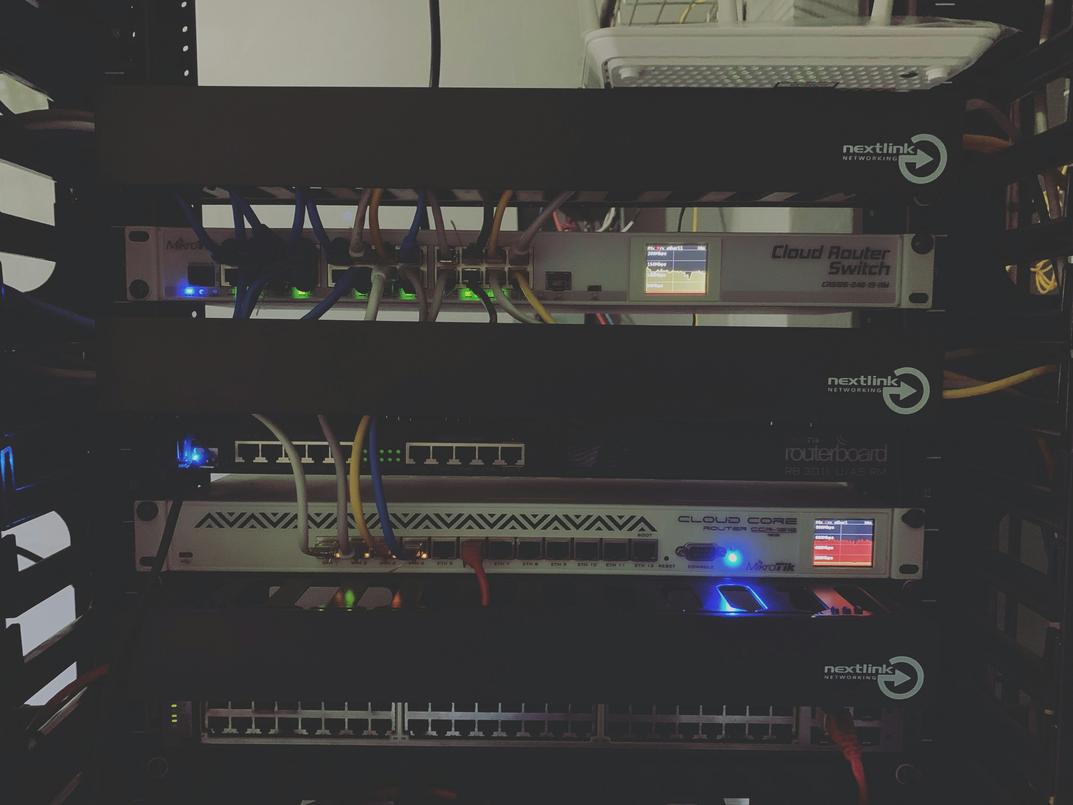
Back in 2020, when Wi-Fi 6 first hit mainstream shelves, many people realized firmware updates weren’t magic. Sometimes the bottleneck is physical.
- Frequent crashes or random reboots under load
- Sluggish speeds with multiple 4K streams
- No support for Wi-Fi 6/6E standards
These are HARDWARE red flags.
Detachable antennas can be swapped for high-gain models to stretch coverage (pro tip: match frequency bands). But after months of testing large homes, a mesh system often beats a single powerhouse router for router performance optimization. Learn more at network basics today online.
Let’s recap what actually moves the needle: update your firmware, optimize your Wi-Fi channels, and configure QoS to prioritize the traffic that matters. These aren’t flashy hacks; they’re foundational fixes. And yet, nothing is more frustrating than buffering during a big game or a frozen Zoom call when you’re mid-sentence.
The good news? A slow network is a solvable problem. With consistent router performance optimization, you shift from guessing to diagnosing.
Start with the firmware update, then move step by step. Before long, you’re not just a user—you’re the network admin (cape optional). Take control and build faster connections today.
Take Control of Your Network Performance Today
You came here looking for clear, actionable ways to improve your network speed, stability, and overall efficiency—and now you have the roadmap to make it happen. From firmware updates and channel selection to bandwidth management and security tweaks, you’ve seen how small adjustments can deliver measurable gains.
Slow speeds, constant buffering, and lag spikes aren’t just frustrating—they disrupt your workflow, gaming sessions, and smart home reliability. Ignoring these issues only compounds the problem over time.
The next step is simple: start implementing these strategies today and prioritize router performance optimization as part of your regular tech maintenance routine. Test your speeds, adjust your settings, and monitor improvements consistently.
If you want proven frameworks, cutting-edge tools, and real-time tech insights trusted by thousands of digital enthusiasts, stay connected with us and explore our latest optimization guides now. Your network doesn’t have to hold you back—take action and unlock peak performance today.
 Syldric Xevandor, the visionary founder of LCF Mod Geeks, stands at the forefront of modern tech innovation, blending deep technical expertise with a passion for digital evolution. Through his platform, he delivers cutting-edge insights on emerging trends, advanced coding frameworks, modding tools, and performance optimization, empowering a new generation of developers and tech enthusiasts. His mission is simple yet powerful: to make complex technology more accessible, practical, and inspiring for those who want to build, customize, and push the limits of the digital world.