
If you’re trying to squeeze every ounce of speed out of your system, you’re likely searching for clear, actionable guidance on SSD vs HDD performance tuning—and what it actually means for real-world performance. With modern apps, games, and development environments demanding more from storage than ever, knowing how to optimize the right drive can dramatically cut load times, improve responsiveness, and extend hardware lifespan.
This article is built to help you make smarter optimization decisions. We break down the practical differences between SSD and HDD tuning, explain how each impacts boot speed, file transfers, and system stability, and outline the specific adjustments that deliver measurable gains.
Our insights are grounded in hands-on testing, current hardware benchmarks, and industry best practices used by system builders and performance engineers. Whether you’re a developer, gamer, or power user, you’ll walk away with focused, up-to-date strategies that align with how modern storage technology actually performs.
Storage performance isn’t just about specs—it’s about strategy. With the right tweaks, you can turn average hardware into a responsive powerhouse without buying new, expensive components. That means faster boots, smoother gaming, and fewer frustrating freezes (yes, even during massive updates).
Start with SSD vs HDD performance tuning to understand how each drive behaves. SSDs thrive on enabled TRIM and ample free space, while HDDs benefit from regular defragmentation and smart partitioning.
The payoff?
- Quicker load times
- Extended drive lifespan
- Lower risk of data corruption
Pro tip: Keep at least 20% free space to maintain peak speeds.
Understanding the Hardware: Why SSDs and HDDs Demand Different Strategies
The Mechanical Heart of the HDD
An HDD (Hard Disk Drive) stores data on spinning magnetic platters. A tiny read/write head moves across these platters to access information. Because data is scattered over time, fragmentation—when pieces of a file are stored in different physical locations—forces the head to travel more, slowing performance. In other words, physical movement is the bottleneck (like a record player searching for the next track). Consequently, optimizing an HDD often means reducing movement through defragmentation and smart file placement.
The Silicon Brain of the SSD
By contrast, an SSD (Solid State Drive) uses NAND flash memory—non-volatile chips that store data electronically. A controller manages data distribution using wear-leveling, an algorithm that spreads writes evenly to prevent premature cell failure. Since there are no moving parts, random access is nearly instantaneous. However, SSDs face write endurance limits, meaning cells can only be rewritten a finite number of times.
Head-to-Head Performance Metrics
In practice, SSDs boot operating systems in seconds, while HDDs may take a minute. Applications launch faster, and random reads are dramatically quicker on SSDs. However, large sequential transfers can still be cost-effective on HDDs.
Cost vs. Capacity vs. Speed
SSDs cost more per gigabyte, but deliver speed; HDDs offer massive storage for less. Therefore, SSD vs HDD performance tuning depends on workload. A hybrid setup—SSD for OS, HDD for bulk files—is often the sweet spot.
Fine-Tuning Your SSD: A Guide to Flash Memory Mastery
Essential Tweak #1: Enabling TRIM
TRIM is a command that tells your SSD which data blocks are no longer in use, allowing the controller to clear invalid data in advance. Without it, write speeds degrade because the drive must erase blocks before rewriting them. Some users assume modern systems handle this automatically, and most do, but blind trust is risky. On Windows, run “fsutil behavior query DisableDeleteNotify” in Command Prompt; a result of 0 means TRIM is active. On macOS, use “system_profiler SPSerialATADataType” and confirm TRIM Support: Yes.
The Cardinal Sin: Defragmenting
Defragmenting an SSD is pointless and harmful. Unlike HDDs, flash memory has near-instant seek times, so rearranging files offers zero speed gain. Worse, defrag triggers massive unnecessary write cycles, accelerating wear. That’s the opposite of smart SSD vs HDD performance tuning. More writes equal less lifespan.
Advanced Tip: Over-Provisioning
Leave 10–20% of your SSD unallocated. This free space helps garbage collection and wear-leveling, meaning the controller distributes writes evenly. Critics argue you’re wasting paid-for capacity. True, on paper. In practice, endurance and sustained speeds improve, especially under heavy workloads. Pro tip: power users running large code builds or 4K edits benefit most.
Firmware and Drivers
Firmware updates fix bugs, patch security flaws, and refine performance. Likewise, updated AHCI or NVMe drivers ensure optimal communication between system and storage. Don’t buy the myth that SSDs are maintenance-free; they reward informed attention. Check for updates and health using manufacturer tools.
Optimizing Your HDD: Getting the Most from Mechanical Storage

Mechanical hard drives still power millions of systems. While SSDs dominate headlines, HDDs reward careful tuning (they’re more “classic vinyl” than “Spotify instant”). Here’s how to squeeze out every bit of performance.
Essential Tweak #1: Strategic Defragmentation
Unlike SSDs, HDDs rely on spinning platters and a moving read/write head. When files are fragmented—split into pieces across the disk—the head must jump around to gather data. That movement increases latency. Defragmentation rearranges data sequentially, reducing seek time and improving load speeds. Microsoft confirms defragmenting can improve efficiency on traditional drives (Microsoft Support).
Schedule it monthly for typical users. Heavy file editors may benefit from biweekly runs. (Pro tip: automate it through Windows’ Optimize Drives tool.)
Use SSD vs HDD performance tuning wisely—defrag HDDs, NEVER SSDs.
Proactive Health Checks: Using CHKDSK
CHKDSK scans for file system errors and bad sectors, preventing corruption. Run it via Command Prompt: chkdsk C: /f /r. The /f fixes errors; /r locates bad sectors. According to Microsoft documentation, this can isolate failing areas before data loss escalates.
Managing the Page File
The page file (virtual memory stored on disk) can fragment over time. Setting a fixed size prevents constant resizing, which reduces disk churn. Some argue Windows manages this fine automatically—and often it does—but fixed sizing stabilizes performance on older drives.
Disk Cleanup and Indexing
Temporary files and aggressive search indexing create unnecessary disk activity.
- Run Disk Cleanup monthly
- Limit indexed folders
- Remove unused programs
Speculation: As hybrid storage evolves, HDD optimization may become niche—but for archival and budget builds, SMART TUNING will remain ESSENTIAL. For broader system tweaks, see how to optimize your gaming pc for maximum performance.
Universal Maintenance: Best Practices for Any Drive
The 20% Rule: Keep at least 15–20% of your drive free. That empty space isn’t wasted—it gives your system room for updates, temporary files, and background optimization. On SSDs, it supports wear-leveling (spreading writes evenly). On HDDs, it reduces fragmentation. Think of it as breathing room for your data.
S.M.A.R.T. Monitoring: Self-Monitoring, Analysis, and Reporting Technology tracks health indicators like reallocated sectors and temperature. Tools such as CrystalDiskInfo can warn you before failure.
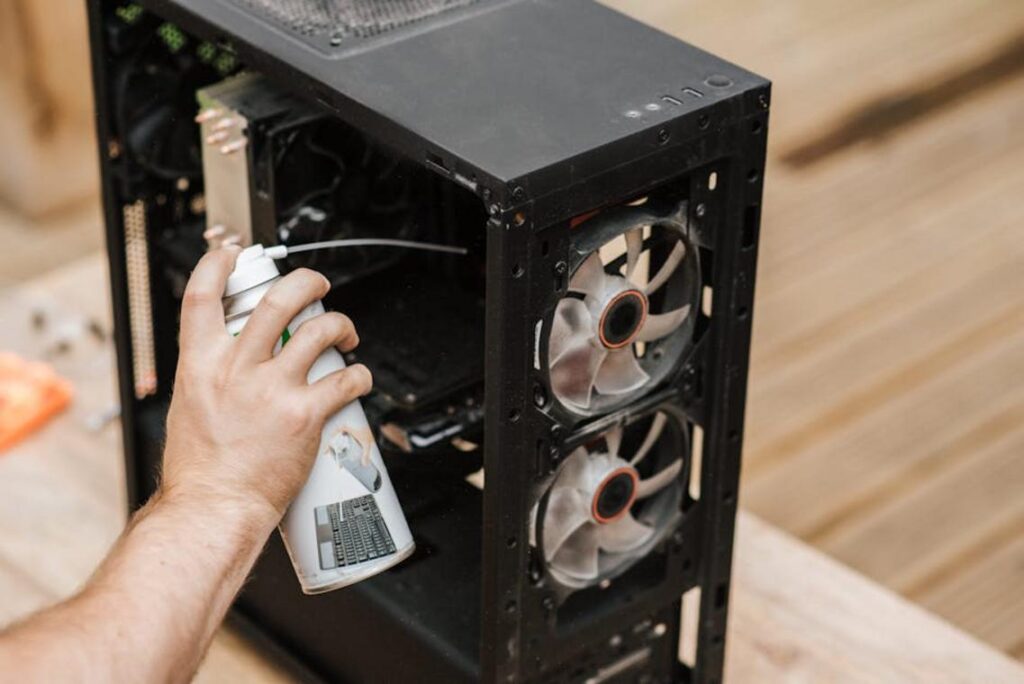
Keep Your System Cool: Excess heat shortens component lifespan. Ensure proper airflow and clean dust regularly. Even basic SSD vs HDD performance tuning benefits from cooler operation.
You now understand that optimizing a drive is not one-size-fits-all; the right strategy depends on its core technology. In practice, SSD vs HDD performance tuning means treating flash storage differently from spinning disks. TRIM lets an SSD clear unused data blocks efficiently, reducing write amplification, a well-documented cause of slowdown (see Microsoft Docs). Meanwhile, HDDs benefit from periodic defragmentation because fragmented files force extra seek time. That said, firmware quirks and edge cases still spark debate, and I won’t pretend every setup behaves identically. So, take five minutes now to confirm TRIM is enabled or schedule your next defrag today.
Take Control of Your System Performance Today
You came here to understand how to push your system further without wasting time or money. Now you know where performance bottlenecks hide, how to optimize your setup, and why SSD vs HDD performance tuning can dramatically impact speed, load times, and overall responsiveness.
Lag, slow boot times, and inefficient workflows aren’t just annoying — they limit what your system can actually do. Whether you’re coding, modding, gaming, or building, performance gaps cost you productivity and power.
The good news? You don’t have to settle for mediocre results. Apply these optimization strategies, upgrade strategically, and fine-tune your configuration to unlock the full potential of your hardware.
If you’re serious about maximizing speed and staying ahead of evolving tech trends, explore more performance guides and advanced optimization breakdowns now. Join thousands of tech enthusiasts who rely on proven, real-world tuning insights to get measurable results. Start optimizing today and feel the difference immediately.
 Syldric Xevandor, the visionary founder of LCF Mod Geeks, stands at the forefront of modern tech innovation, blending deep technical expertise with a passion for digital evolution. Through his platform, he delivers cutting-edge insights on emerging trends, advanced coding frameworks, modding tools, and performance optimization, empowering a new generation of developers and tech enthusiasts. His mission is simple yet powerful: to make complex technology more accessible, practical, and inspiring for those who want to build, customize, and push the limits of the digital world.