
If you’re searching for the most effective ways to stay ahead in tech innovation, optimize your setup, or unlock a real gaming PC speed boost, this article is built for you. The digital landscape evolves fast—new coding frameworks emerge, modding tools update overnight, and performance tweaks that worked last year may already be outdated. Sorting hype from genuinely useful upgrades can be overwhelming.
This guide cuts through that noise. We break down the latest tech alerts, practical optimization strategies, and performance-enhancing tools that actually deliver measurable results. Whether you’re a developer refining your workflow, a modder pushing creative limits, or a gamer chasing smoother frame rates, you’ll find actionable insights tailored to your goals.
Our recommendations are grounded in hands-on testing, analysis of current digital trends, and direct evaluation of tools in real-world scenarios—so you’re not just getting theory, but proven strategies you can apply immediately.
Last year, I booted up my favorite shooter and watched it stutter like a slideshow. My rig was powerful, so what gives? As it turns out, raw hardware means nothing without smart optimization. Even high-end GPUs can choke on bloated drivers, background apps, and messy settings. So, here’s the fix. This guide walks you through a step-by-step checklist, from updating drivers to BIOS tweaks, delivering a real gaming PC speed boost. First, kill startup bloat; then, tune in-game settings and enable performance modes. Finally, explore advanced overclocking and storage optimization. These proven tweaks helped me reclaim smooth, high-FPS sessions consistently.
Start with the Essentials: Software and Driver Optimization
Update What Matters First
If you want a real gaming PC speed boost, start with your graphics drivers. NVIDIA, AMD, and Intel regularly release driver updates that improve frame rates, fix bugs, and unlock features like DLSS (Deep Learning Super Sampling, AI-powered upscaling) and FSR (FidelityFX Super Resolution, AMD’s performance-boosting upscaler). These aren’t minor tweaks—they directly impact performance, stability, and compatibility with new titles. Skipping updates is like buying a sports car and never shifting out of second gear.
Next, optimize Windows itself. Install the latest OS updates to ensure security patches and performance improvements are active. Turn on Game Mode (found in Windows Settings > Gaming) to prioritize system resources for gameplay. Then open Task Manager and disable unnecessary startup apps—those background launchers and auto-updaters quietly eat RAM and CPU cycles.
Switch your Power Plan from Balanced to High Performance—or Ultimate Performance if available. This setting ensures your CPU runs at higher sustained clock speeds instead of throttling to save energy.
Finally, clean your storage. A nearly full drive slows load times and system responsiveness, especially traditional HDDs. Use Windows Disk Cleanup and Optimize Drives to defragment (for HDDs) or trim (for SSDs). Free space equals faster access—and smoother gameplay overall.
Fine-Tuning In-Game Graphics for Maximum FPS
If you want smoother gameplay, start with the setting that hits performance the hardest: resolution. Resolution refers to the number of pixels your GPU (graphics processing unit) renders each frame. Moving from 1080p (1920×1080) to 1440p or 4K massively increases pixel count—and workload. 4K pushes four times as many pixels as 1080p. Lowering resolution is the fastest gaming PC speed boost you can make (yes, it’s that dramatic). If you’re struggling, drop one step and test.
Next, reduce the most demanding options first:
- Shadows – High-resolution shadows constantly update and are extremely taxing.
- Ray Tracing – Simulates realistic light behavior, but can cut FPS in half on mid-tier GPUs (NVIDIA, 2023).
- Volumetric Effects – Fog, god rays, and smoke look cinematic, but they chew through resources.
- Anti-Aliasing (AA) – Smooths jagged edges; lower from ultra to medium for easy gains.
Now, enable upscaling technology. DLSS (Deep Learning Super Sampling), FSR (FidelityFX Super Resolution), and XeSS render the game at a lower internal resolution, then use AI or advanced algorithms to upscale the image. The result? Higher FPS with minimal visual loss (AMD, 2023). Use “Quality” mode first—it’s the sweet spot.
For screen tearing, toggle V-Sync. It synchronizes frame output with your monitor’s refresh rate, but may introduce input lag. Competitive player? Disable V-Sync and set an in-game frame rate cap slightly below your monitor’s refresh rate instead.
For more optimization breakdowns, check out this guide. Test changes one at a time (pro tip: don’t tweak everything at once).
Advanced System Tweaks for the Enthusiast
If you’ve already upgraded your hardware, the next step is unlocking its full potential. These tweaks deliver measurable gains—without spending another dollar.
Enable XMP/DOCP in BIOS/UEFI
Most RAM defaults to slower speeds than advertised. XMP (Extreme Memory Profile) for Intel or DOCP for AMD lets your motherboard apply the manufacturer’s tested speed and timings automatically. Simply enter BIOS/UEFI during startup, locate the memory profile setting, and enable it. That’s it. The benefit? Higher memory bandwidth, smoother multitasking, and fewer CPU bottlenecks in modern games (especially open-world titles that stream assets constantly).
GPU Overclocking Basics
Tools like MSI Afterburner let you increase core and memory clocks gradually. A careful 5–10% bump can translate into a noticeable FPS lift. Increase speeds incrementally, stress test, and monitor temperatures. Done right, it’s essentially a free gaming PC speed boost.
Optimize NVIDIA/AMD Control Panel Settings
Switch NVIDIA’s Power Management Mode to “Prefer Maximum Performance” or enable AMD’s Radeon Anti-Lag. These settings reduce latency and stabilize frame delivery—meaning faster response in competitive matches.
Disable Fullscreen Optimizations
Right-click a game’s .exe file, open Properties, and disable Fullscreen Optimizations. This can reduce stuttering and input lag on certain systems.
For more performance ideas beyond desktops, explore smartphone performance tuning without rooting.
Beyond Software: Hardware and Maintenance Checks
Even the flashiest settings tweaks can’t save a system that’s overheating. When temps climb too high, your components trigger thermal throttling—an automatic slowdown that protects the CPU and GPU from damage (think of it like your PC pulling a Spider-Man and saying, “Everybody chill”). Use free tools like HWMonitor or MSI Afterburner’s overlay to watch temperatures during gameplay and catch problems early.
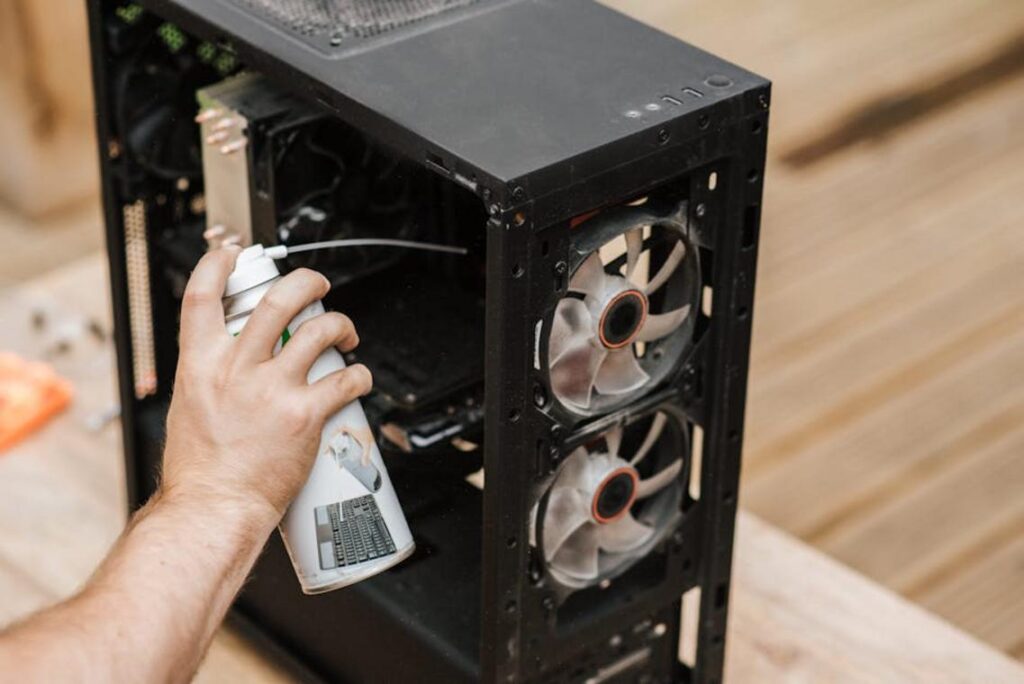
Dust is the silent performance killer. It builds up on fans and heatsinks, acting like a winter coat your PC never asked for, trapping heat and dragging down frame rates. A quick blast of compressed air every few months keeps airflow strong and performance steady.
If you’re chasing a real gaming PC speed boost, prioritize upgrades in this order:
- Graphics Card (GPU)
- CPU and RAM
- Swap HDD for an SSD
Pro tip: monitor temps after every hardware change carefully.
Your smoother, faster gaming experience awaits.
Higher FPS isn’t magic; it’s the result of steady software updates, smart settings tweaks, and consistent system maintenance. You don’t have to accept stuttering and low frame rates as the norm— even on older hardware.
Start with the basics:
- Update your GPU drivers and chipset firmware.
- Lower shadows, disable motion blur, and switch to performance presets.
- Clear background apps draining resources.
These steps compound into a real gaming PC speed boost you’ll notice immediately.
Pro tip: reboot after major updates and benchmark before and after changes to track gains. Start today.
Take Control of Your Performance Now
You came here looking for a real gaming PC speed boost—not vague advice or recycled tips. Now you know exactly what slows your system down, which optimizations actually work, and how to fine-tune your setup for smoother gameplay and faster load times.
Lag spikes, stuttering frames, and long boot times aren’t just annoying—they cost you wins and waste your time. The good news? You don’t need expensive hardware upgrades to see real improvement. With the right tweaks, tools, and system adjustments, you can unlock performance that was already sitting inside your machine.
Here’s your next move: apply these optimization steps today, keep your drivers and mods streamlined, and stay ahead of emerging performance tools. If you’re serious about eliminating slowdowns for good, tap into the latest tech alerts and proven optimization frameworks trusted by thousands of performance-focused users.
Stop settling for mediocre frame rates. Take action now, optimize your system, and experience the speed your gaming PC was meant to deliver.
 Sidneyasen Russell is a dedicated tech writer and optimization specialist at LCF Mod Geeks, bringing precision and depth to every piece of content. With a focus on performance, coding frameworks, and practical implementation, he delivers actionable insights that empower developers to build smarter and faster. His analytical mindset and passion for efficiency make his contributions essential for readers looking to refine their skills and elevate their digital projects.