You’re in the middle of a game, lining up the perfect shot, when everything freezes. We’ve all been there, right? It’s infuriating.
But what if I told you there’s a way to transform those lag spikes into silky-smooth gameplay? This isn’t another useless tip like “close other tabs.” I promise a no-fluff guide to gaming PC optimization that actually works. With years of system tweaking behind me, I’ve sifted through what truly enhances performance versus what’s a waste of time.
Low FPS, input lag, those performance hiccups. These are the real enemies. They hold you back from reaching your gaming potential.
Ready to tackle them? This guide offers a clear path, from simple software fixes to advanced hardware tuning. Let’s give you that competitive edge, one tweak at a time.
Quick Wins: Important Software & OS Tweaks
to some quick, no-nonsense tweaks for your gaming PC. We all want those instant boosts, right? First off, let’s talk about Windows Game Mode.
It’s supposed to prioritize resources, but don’t expect miracles. What it really does is direct your system’s attention to the game you’re playing.
Now, time to nix those startup programs. Ever notice your PC lagging at boot? Check your Task Manager.
You might find cloud sync services and updaters hogging resources. Disable them. (Pro tip: Keep your antivirus running.)
On to power plans. Adjusting to ‘High Performance’ or ‘Ultimate Performance’ can crank up CPU clock speeds. It’s like giving your system a shot of espresso.
You want smooth gameplay? This is your ticket. Make sure you switch these settings when gaming, but maybe dial it back when you’re done.
Visual effects in Windows can be a sneaky drain. Head to System Properties, then Performance, and uncheck those cosmetic features. Yes, your screen might look less flashy, but who needs frills when you’re in the middle of a boss fight?
Don’t forget about Discord, Steam, and other overlays. They’re like those extra layers of clothing you don’t need. Turn them off for a smoother experience.
And if you’re curious about improving smartphone camera capabilities, check out our guide.
So, there you have it. A few quick tweaks for gaming PC optimization. Simple changes, big impact.
Ready to see the difference?
Master Your GPU: The Heart of Gaming
First things first, if you’re serious about gaming PC optimization, updating your graphics drivers is non-negotiable. You’d be surprised how many gamers skip this step. Head straight to Nvidia or AMD’s official sites for the latest.
It’s the number one fix for new games and avoids unnecessary headaches.
Now, let’s talk about Nvidia users. Fire up that Nvidia Control Panel. Have you ever heard of “Power Management Mode”?
Set it to “Prefer Maximum Performance”. This ensures your GPU isn’t slacking off. “Texture Filtering – Quality” should be on “High Performance”. Why?
It sharpens textures and boosts frame rates. For those real-time action games, turn “Low Latency Mode” to On or Ultra. This reduces input lag, giving you a key advantage.
AMD folks, your turn. Open up Radeon Software and check out “Radeon Anti-Lag”. Activate it for a snappy response time in fast-paced games.
Then there’s “Radeon Boost”. It dynamically lowers resolution during intense moments to maintain smooth gameplay. Perfect for those blockbuster titles.
Also, adjust “Texture Filtering Quality” to Performance. Your games will thank you by running smoother.
Here’s a pro tip: set these tweaks as global settings for overall performance. But don’t stop there. Customize profiles for your favorite games.
Need help organizing? Use this resource to simplify your setup.
Does it seem like a lot? Maybe. But gaming performance is all about these details.
You want to dominate, right? Treat your GPU settings like a finely tuned instrument. Tweak them, and watch your gaming experience soar.
Under the Hood: Tuning Your Gaming Machine
Let’s talk about gaming PC optimization. Everyone’s obsessed with software, but what about the hardware breathing life into your games? It’s like a marathon runner who needs proper shoes and hydration, not just mental strength.

When your PC runs too hot, it slows down like a runner overheating. That’s thermal throttling.
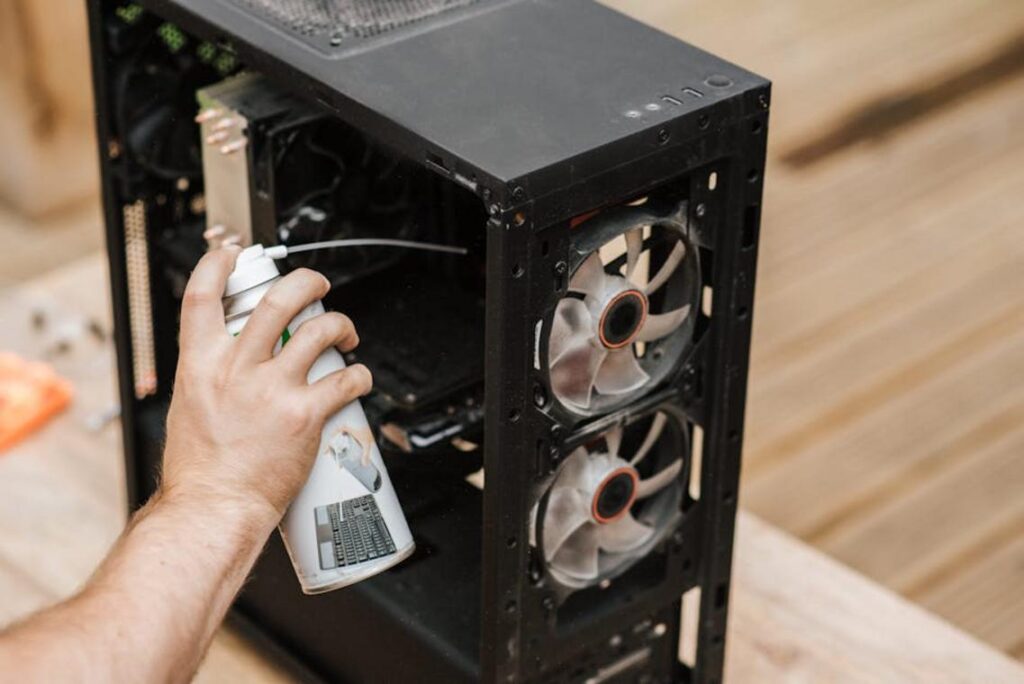
To avoid this, grab some compressed air and clear out the dust from your fans, heatsinks, and vents. Do this regularly. It’s simple, but trust me, it makes a difference.
And don’t forget to monitor your system temperatures. Use free software like HWMonitor or MSI Afterburner’s overlay. Keep those CPUs and GPUs under 85°C when they’re working hard.
Now, RAM. If you’re gaming with less than 16GB, you’re not doing yourself any favors. Check your usage in Task Manager.
More RAM means smoother gameplay. It’s that straightforward.
And let’s not forget SSDs versus HDDs. Loading times can be a real drag with an HDD. SSDs are faster (end) of story.
Your primary games should live there. Speaking of making the most out of your tech, have you thought about maximizing battery life laptops? It’s all about efficiency and getting the best performance without the hassle.
Remember, hardware maintenance isn’t just for techies. It’s for anyone who wants their rig to run like a dream. So, roll up your sleeves and show your machine some love.
The Pro Tweak: Unlocking Peak Performance with Advanced Tools
Ever wonder why your gaming PC isn’t hitting its peak? Most guides skip the real secrets. Let’s talk about MSI Afterburner.
It’s not just some fancy monitoring tool. You can set a custom fan curve. Keeps your temps lower and performance rock solid.
Who knew, right?
Now, let’s touch on undervolting. Sounds techy, but trust me, it’s gold. Undervolting your GPU isn’t about losing power.
It’s about getting the same (if not better) performance with less heat. More stable clock speeds without frying your rig. It’s safer than aggressive overclocking.
Back in the day, we all pushed our PCs to the max. But who wants to see smoke coming out of their case?
Ever heard of RivaTuner Statistics Server (RTSS)? It’s your frame rate whisperer. Limit that FPS to just below your monitor’s refresh rate.
Why? Smoother gameplay, no tears (not those kinds of tears). Imagine running at 142 FPS on a 144Hz monitor.
Perfection.
And hey, system debloating. Strip out those non-important Windows processes. Free up resources like a clean sweep.
Community scripts can do wonders here. Just don’t go deleting things blindly. We all know how that ends.
Gaming PC optimization isn’t about flashy gadgets. It’s about smart tweaks. So why do we complicate things?
Keep it simple. Keep it optimized. You’ll feel the difference when you’re in the thick of battle or just chilling in-game.
Get your system prepped and primed. Ready to game on another level?
Level Up Your Gaming Experience
You’ve got the tools now. Every bit of advice here leads you to the best possible gameplay. Inconsistent FPS and stuttering should be history.
Why struggle when you can have smooth gaming? This multi-layered approach works because it targets all the usual suspects: software, drivers, and even hardware hygiene. It’s the kind of gaming PC optimization that changes everything.
But where to start? Pick one area today. Maybe clean your PC or dive into your GPU settings.
You’ve got choices. And don’t stop there. Check out more guides on advanced system tweaks and modding to push your machine even further.
Ready to boost your gaming? You know what to do. Start optimizing now and witness the difference.
 Syldric Xevandor, the visionary founder of LCF Mod Geeks, stands at the forefront of modern tech innovation, blending deep technical expertise with a passion for digital evolution. Through his platform, he delivers cutting-edge insights on emerging trends, advanced coding frameworks, modding tools, and performance optimization, empowering a new generation of developers and tech enthusiasts. His mission is simple yet powerful: to make complex technology more accessible, practical, and inspiring for those who want to build, customize, and push the limits of the digital world.