You know the feeling: the final push, the perfect setup, and then—your screen stutters. A split-second frame drop turns a guaranteed win into a crushing loss. It’s not just bad luck. It’s untapped potential. Your hardware is capable of more, but background processes, unoptimized settings, and hidden system limits are holding it back. This guide delivers a clear, actionable roadmap to smoother gameplay, higher FPS, and faster response times. From quick, no-cost software tweaks to smarter upgrade decisions, you’ll discover practical gaming PC optimization strategies that transform frustrating lag into consistently elite performance.
The Foundation: Essential Software Optimizations for Instant Gains
Graphics Driver Supremacy
First and foremost, updating your NVIDIA, AMD, or Intel drivers is non‑negotiable. Drivers are low-level software that allow your operating system and GPU to communicate. When they’re outdated, performance drops and crashes spike (yes, even on high-end rigs). According to NVIDIA release notes, driver updates frequently include game-specific optimizations that can boost FPS by double-digit percentages in new titles.
Some argue that “if it isn’t broken, don’t fix it.” Fair point—but lingering shader cache conflicts and corrupted installs can silently throttle performance. That’s where Display Driver Uninstaller (DDU) comes in. It removes leftover files for a truly clean slate before reinstalling drivers.
In-Game Settings Demystified
Not all settings are equal. Prioritize tweaking:
- Shadow Quality: High GPU load, modest visual gain. Lower first.
- Anti-Aliasing: Smooths jagged edges; can be costly (TAA is lighter than MSAA).
- Texture Filtering: Usually minor impact; keep moderate.
- View Distance: Heavy CPU/GPU usage in open-world games.
Then there’s Render Scaling—internally rendering at a lower resolution and upscaling. It’s the secret weapon competitors rarely emphasize in gaming PC optimization (think DLSS or FSR-style magic).
Taming Background Processes
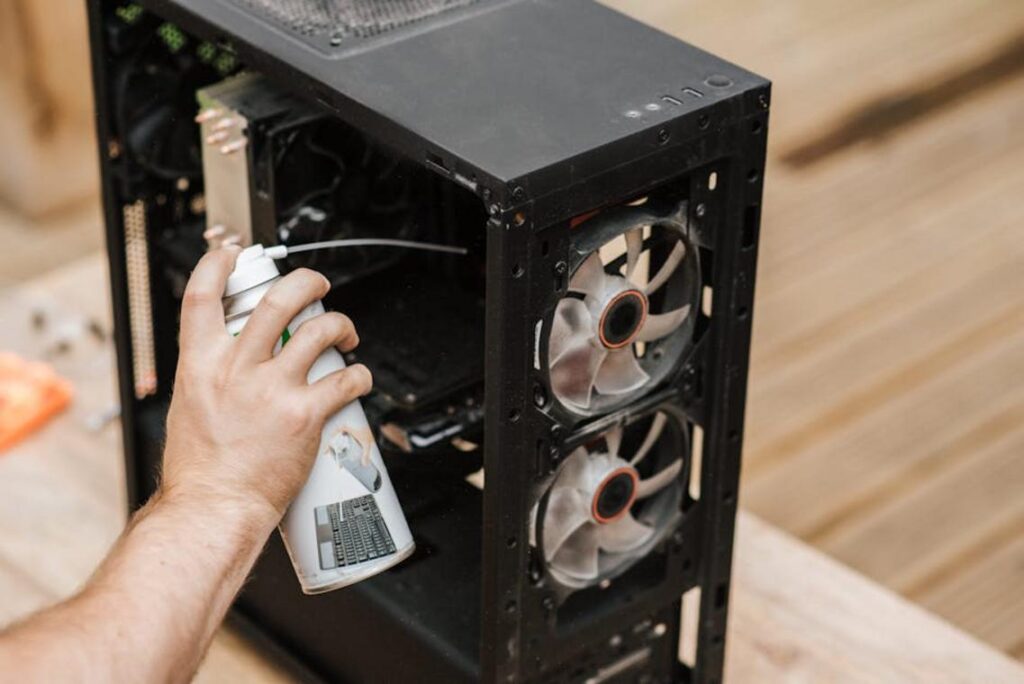
Before launching a game, open Task Manager and close resource hogs: browsers, streaming apps, auto-updaters, and manufacturer bloatware. Even RGB control suites can chew CPU cycles (surprising, right?).
Leveraging Built-in OS Tools
Enable Windows Game Mode to prioritize system resources for games. Turn on Hardware-accelerated GPU Scheduling to offload scheduling tasks to the GPU, reducing latency. For thermal stability, review these laptop cooling tips to prevent overheating and throttling.
Pro tip: Reboot before gaming sessions to clear memory fragmentation and background hooks.
Unlocking Your Hardware’s Hidden Potential

You bought the hardware. You paid for the frames. So why is your PC acting like it’s stuck in power‑saving mode during a boss fight? Let’s fix that.
1. The Ultimate Power Plan
Windows often defaults to “Balanced” mode (great for laptops, not so great for dragons). Open Control Panel > Power Options and enable High Performance. On Windows Pro, you can unlock Ultimate Performance via Command Prompt. This ensures your CPU doesn’t throttle when things heat up—because no one wants lag mid-clutch like it’s 2012 Wi-Fi.
Pro tip: If you don’t see Ultimate Performance, your system may support it but require manual activation.
2. Memory at Full Speed (XMP/EXPO)
Here’s the plot twist: most RAM runs below its advertised speed out of the box. Restart your PC, enter BIOS/UEFI (usually by tapping Delete or F2), and enable:
- XMP (Intel systems)
- EXPO (AMD systems)
Think of it like unlocking your character’s true form—Goku removing weighted clothing. This simple switch can boost performance noticeably, especially in CPU-heavy games.
3. Safe GPU Overclocking
Overclocking sounds dangerous (cue dramatic soundtrack), but tools like MSI Afterburner make it approachable. Use the built-in OC Scanner for automated, stable gains. Or manually increase core and memory clocks in small steps, testing stability each time. Conservative tweaks = smoother gameplay.
4. Optimize Your Game Launcher
Disable overlays in Steam or Epic—they consume resources. Pause background downloads while gaming. It’s basic gaming PC optimization, yet often ignored.
Some argue modern systems auto-manage everything. True—but defaults favor safety, not peak performance. A few smart tweaks turn your PC from mild-mannered reporter into full superhero mode.
The Upgrade Path: Prioritizing Hardware for Maximum Impact
Upgrading your PC isn’t about swapping parts randomly; it’s about identifying the bottleneck—the component limiting performance. Think of it like a traffic jam: the slowest lane dictates overall speed.
Tier 1 – The Graphics Card (GPU)
First and foremost, the GPU drives gaming FPS (frames per second). In fact, in most modern AAA titles, the graphics card determines over 70% of performance outcomes at 1080p and above (TechPowerUp GPU scaling benchmarks). To confirm a bottleneck, use monitoring tools like MSI Afterburner. If GPU usage sits near 95–100% while CPU usage is lower, your GPU is maxed out.
When choosing a new card, look beyond raw core clocks. VRAM (video memory) matters—8GB is now entry-level, while 12GB+ is recommended for newer titles like Starfield. Also consider DLSS (NVIDIA) or FSR (AMD), which use AI upscaling to increase FPS by 30–70% in supported games (NVIDIA developer reports).
Tier 2 – The Processor (CPU)
However, high-refresh-rate gamers (144Hz+) may hit CPU limits first. Strategy and simulation games such as Civilization VI lean heavily on processor calculations. Here, “1% lows”—the lowest 1% of FPS readings—matter more than average FPS. Studies from Gamers Nexus show smoother 1% lows directly correlate with perceived responsiveness.
Tier 3 – System Memory (RAM)
Meanwhile, 16GB is today’s baseline, but 32GB reduces background-task slowdowns. Speed (MHz) and latency (CL) influence frame pacing; faster RAM can improve 1% lows by 5–15% in CPU-bound games.
Tier 4 – Storage (SSD)
Finally, SSDs dramatically outperform HDDs. NVMe drives load games up to 5x faster (Samsung benchmark data) and reduce asset streaming hitches—critical for seamless gaming PC optimization.
Use RivaTuner Statistics Server (RTSS) to add an on-screen display showing FPS (frames per second), GPU/CPU temperatures, and usage in real time. This helps pinpoint bottlenecks fast. Meanwhile, community mods—like texture optimization packs or lean config files—can push gaming PC optimization beyond official patches. Always benchmark before and after changes carefully.
Achieving a Flawlessly Fluid Gaming Reality
You’ve seen how the journey from simple software tweaks to smarter hardware choices transforms the way your system performs. True performance gains don’t happen in a single upgrade—they come from a consistent, methodical approach. After all, even the most powerful rig can underdeliver without proper gaming PC optimization. That lingering lag, stutter, or slow load time isn’t a hardware failure—it’s a configuration gap.
The good news? A smoother, faster, more immersive experience is within reach. Start today. Apply the foundational software optimizations you’ve learned and launch your favorite game—you’ll feel the difference immediately.
 Syldric Xevandor, the visionary founder of LCF Mod Geeks, stands at the forefront of modern tech innovation, blending deep technical expertise with a passion for digital evolution. Through his platform, he delivers cutting-edge insights on emerging trends, advanced coding frameworks, modding tools, and performance optimization, empowering a new generation of developers and tech enthusiasts. His mission is simple yet powerful: to make complex technology more accessible, practical, and inspiring for those who want to build, customize, and push the limits of the digital world.