If you’re searching for laptop overheating solutions, you’re likely dealing with loud fans, sudden shutdowns, lagging performance, or a device that gets uncomfortably hot within minutes. Overheating doesn’t just slow your system down — it can shorten hardware lifespan, damage internal components, and disrupt your workflow at the worst possible time.
This article is designed to give you clear, practical, and effective fixes you can apply right away. We’ll break down the real causes behind laptop overheating, from airflow restrictions and thermal paste issues to background processes and GPU strain, then walk you through proven ways to reduce temperatures and improve performance.
Our recommendations are grounded in current hardware best practices, system optimization standards, and widely tested cooling techniques used by experienced tech professionals. Whether you’re gaming, coding, editing, or simply browsing, you’ll find actionable steps here to keep your laptop running cooler, quieter, and more reliably.
Why Overheating Is a Bigger Deal Than You Think
A hot laptop isn’t just annoying—it’s a silent performance thief. When temperatures spike, your system triggers thermal throttling (automatic speed reduction to prevent damage), which means slower apps, lag, and random shutdowns. I’ve seen powerful machines crawl because of dust alone.
Here’s my no-nonsense checklist of laptop overheating solutions:
- Clean the vents and fans (compressed air works wonders)
- Elevate the laptop for better airflow
- Update drivers and BIOS
- Replace old thermal paste
Some argue heat is “normal.” Sure, to a point. But sustained high temps shorten component lifespan (Intel notes prolonged heat degrades silicon efficiency). Pro tip: monitor temps monthly.
Why Is My Laptop So Hot? Diagnosing the Core Problem
First, identify the symptoms. Is your fan blasting nonstop? Do your games lose frames after 10 minutes? Is the chassis almost too hot to touch? Those are classic overheating signals (and no, it’s not “just working hard”).
Now compare causes side-by-side:
- Dust vs. Clean Internals: Dust buildup acts like an insulating blanket over your CPU and GPU. A clean system moves heat efficiently. One clogs airflow; the other breathes.
- Hard Surface vs. Soft Surface: A desk allows airflow. A bed or couch suffocates intake vents. Same laptop, totally different thermal outcome.
- Light Tasks vs. Heavy Loads: Email and streaming barely warm components. Video editing, modern games, or 30 browser tabs? That maxes out processing power and spikes heat.
- Fresh Thermal Paste vs. Dried Paste: Over years, paste dries and cracks, weakening heat transfer.
Key insight: Heat isn’t random—it’s mechanical or workload-driven.
Some argue heat is “normal.” True, to a point. But persistent overheating demands action—starting with practical laptop overheating solutions.
Instant Relief: Free & Easy Ways to Cool Your Laptop Now
When your laptop feels hot enough to fry an egg (please don’t test that), you don’t need fancy gear—you need smarter airflow and workload control.
First, elevate the back of your laptop. Slide a book or small object underneath to create a noticeable air gap. Laptops pull in cool air from below and push hot air out the sides or back. Giving that heat somewhere to go can drop temperatures within minutes. It’s simple physics: better airflow equals better cooling.
Next, always use a hard, flat surface. Beds, couches, and even your lap trap heat and block intake vents. A desk or tray keeps ventilation clear and consistent. This small habit often outperforms expensive cooling pads (yes, really).
Then, optimize your operating system’s power plan. Switching from “High Performance” to “Balanced” allows your CPU to throttle down when full power isn’t necessary. Modern processors are designed to scale dynamically, which reduces heat output without wrecking everyday performance.
Meanwhile, manage your software load. Open Task Manager (Ctrl+Shift+Esc) or Activity Monitor to identify resource-hogging apps. Close unused tabs—Chrome alone can quietly devour RAM like it’s an all-you-can-eat buffet. Lower demand equals lower temperature.
For gamers, adjust in-game graphics settings. Reducing shadow quality, anti-aliasing, and resolution eases GPU strain dramatically. You might lose ultra-realistic reflections—but you’ll gain stability and cooler sessions.
Some argue that only external cooling pads count as real laptop overheating solutions. However, airflow optimization and workload control often deliver faster, zero-cost results.
Pro tip: Apply similar power-saving logic across devices—just like the principles behind the best ways to extend smartphone battery lifespan.
Small tweaks. Immediate relief. No toolbox required.
The Deep Clean: A Step-by-Step Guide to Removing Dust
Before you do anything, safety first. Power down your laptop completely, unplug the adapter, and remove the battery if it’s detachable. This isn’t just a formality—electricity plus metal tools is a bad combo (think sparks, not success).
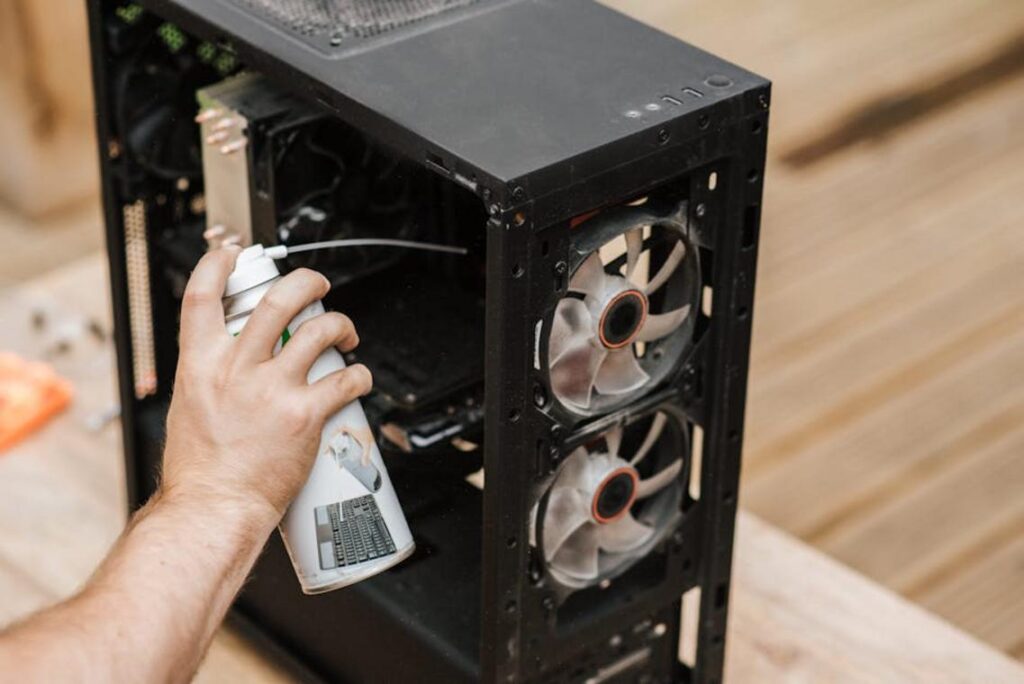
Next, grab your essential tool: a can of compressed air. Compressed air is pressurized gas designed to dislodge debris without physical contact. Avoid vacuum cleaners. While they seem convenient, they can generate static electricity, which may damage sensitive internal components (ESD—electrostatic discharge—is a silent killer of electronics, according to the U.S. National Institute of Standards and Technology).
Now, move to the vents. These are the intake and exhaust openings on the sides, back, or bottom. Using short, controlled bursts, aim the nozzle at a slight angle to push dust out—not deeper in. Keep the can upright to prevent liquid propellant from spraying.
As you blow air inside, immobilize the fans with a toothpick or paperclip. Letting them spin freely can strain or damage the motor. It’s a small step that prevents a bigger repair bill (pro tip: gentle pressure is all you need).
For advanced users, removing the bottom panel gives direct access to fans and heatsink fins. Heatsinks dissipate heat from the CPU and GPU, and clearing them can dramatically improve airflow. Just note: this may void your warranty, so check your model-specific guide first.
What’s next? If overheating persists, explore broader laptop overheating solutions like replacing thermal paste or using a cooling pad. Dust removal is step one—not the whole story.
Level Up Your Cooling: Hardware and Advanced Solutions
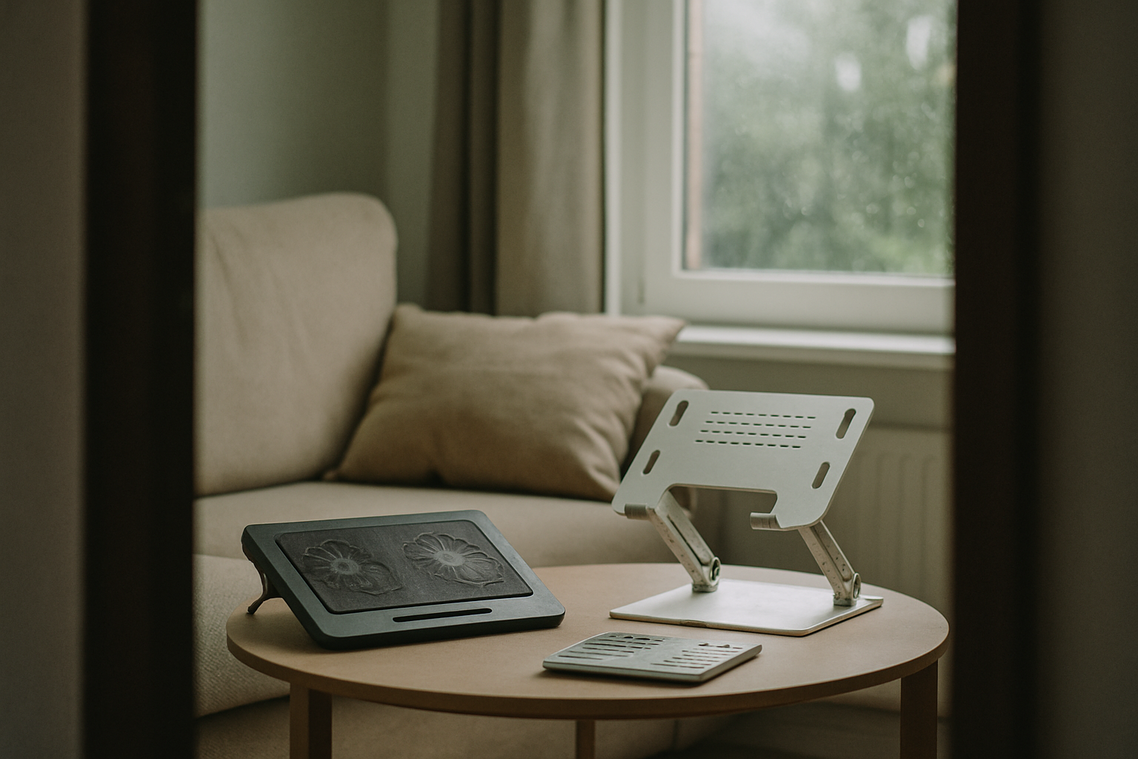
If your laptop sounds like it’s preparing for liftoff, it’s time to step things up. First, invest in a cooling pad. These external stands use built-in fans to push cool air into your laptop’s intake vents. In my experience, they’re one of the simplest laptop overheating solutions that actually deliver—especially during gaming or video rendering (when your CPU and GPU are basically running a marathon).
Next, consider re-applying thermal paste. Thermal paste is a heat-conductive compound that transfers heat from your processor to the heatsink. After about three years, it can dry out and lose efficiency. Replacing it with a high-quality compound can reduce temperatures by 5–15°C (a noticeable drop, not marketing fluff). It’s hands-on, yes—but worth it.
Finally, use fan control software. Custom fan curves let fans spin earlier, preventing heat buildup instead of reacting to it. Personally, I’d rather hear fans sooner than face thermal throttling later.
Achieve Peak Performance Through Better Thermals
You now have a complete toolkit to combat overheating, from simple placement changes to hands-on hardware maintenance. But let’s clarify what that really means. Thermals refer to how heat moves through your laptop’s components and out through its cooling system. When heat can’t escape, the processor “throttles” (automatically slows down) to prevent damage.
A hot laptop isn’t just uncomfortable—it shortens hardware lifespan and reduces speed.
Start with:
- Elevating your device for airflow
- Cleaning vents and fans
- Updating system drivers
These laptop overheating solutions restore performance fast. Even small changes can deliver noticeable responsiveness gains.
Stay Ahead of the Heat and Take Control of Your Performance
You came here looking for real answers to persistent performance drops, loud fan noise, and unexpected shutdowns. Now you understand what’s causing the issue and how smart optimization, airflow improvements, and system tweaks can prevent long-term damage.
Overheating isn’t just an annoyance — it slows your workflow, interrupts gaming sessions, and shortens your device’s lifespan. Ignoring it only makes the problem worse. Applying the right laptop overheating solutions ensures smoother performance, better efficiency, and hardware that lasts.
If you’re tired of lag, thermal throttling, and constant overheating warnings, it’s time to act. Explore our latest optimization guides, modding tools, and performance frameworks designed to keep your system running cool and fast. Thousands of tech enthusiasts rely on our updates to stay ahead of hardware issues.
Don’t wait for another forced shutdown — dive into our expert-backed resources now and optimize your laptop for peak performance today.
 Sidneyasen Russell is a dedicated tech writer and optimization specialist at LCF Mod Geeks, bringing precision and depth to every piece of content. With a focus on performance, coding frameworks, and practical implementation, he delivers actionable insights that empower developers to build smarter and faster. His analytical mindset and passion for efficiency make his contributions essential for readers looking to refine their skills and elevate their digital projects.